
Warp Paint
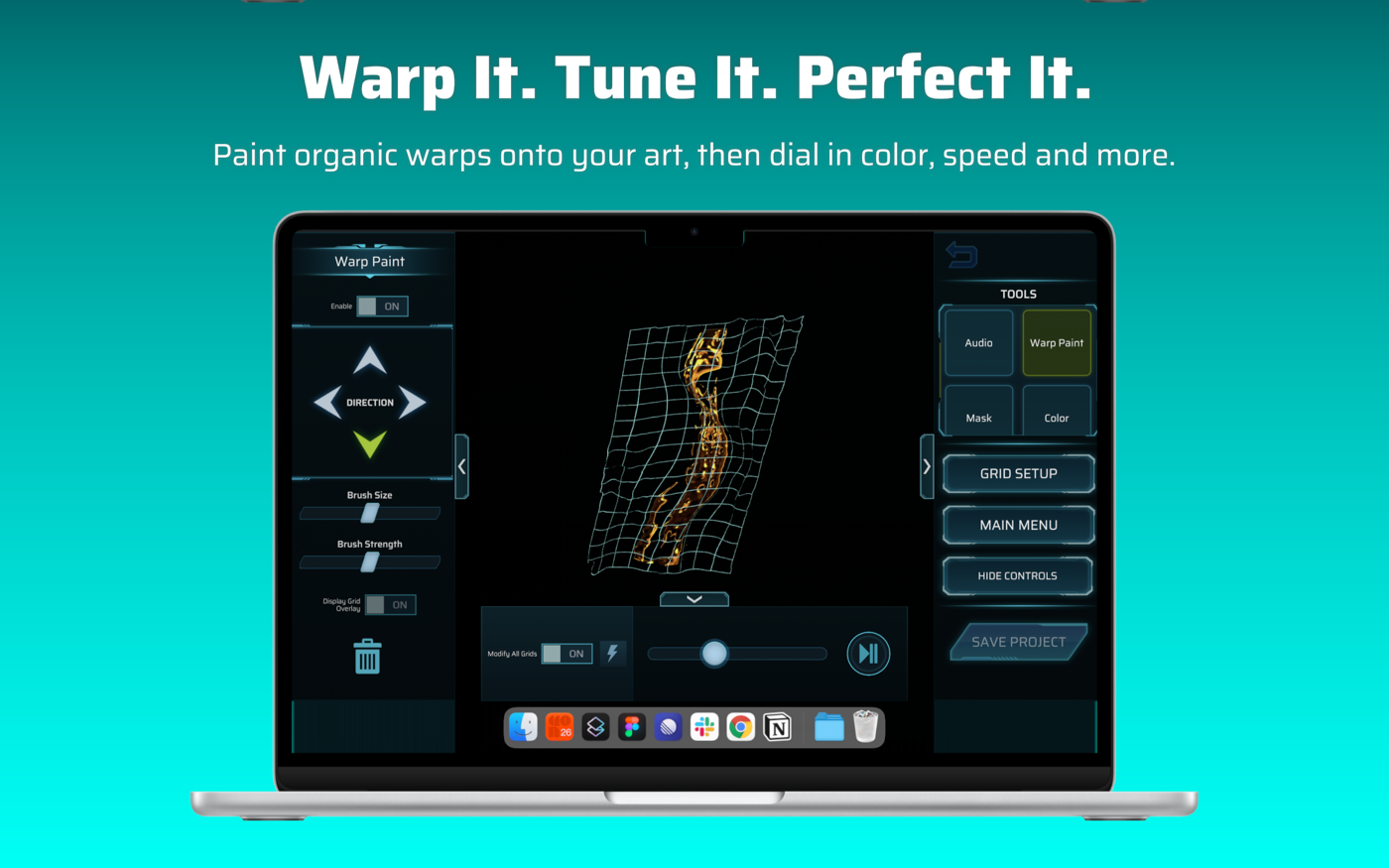
Warp Paint bends the picture wherever you paint. It’s for the surfaces four corners can’t describe: curves, folds, bumpy walls, objects.
Painting a warp
Section titled “Painting a warp”- Switch Enable on. When it’s off, the tool opens but nothing is painted, and the app shows “Warp Paint is off. Turn it on to draw.”
- Choose a DIRECTION with the four arrows. The chosen arrow lights up. This is the way the picture is pushed. Tap it again to deselect.
- Set the Brush Size and Brush Strength.
- Drag over the picture. Wherever you paint, the art is pushed in the chosen direction. Paint more in the same place to push further.
A circle shows the size of the brush.
Seeing what you’re doing
Section titled “Seeing what you’re doing”Display Grid Overlay draws grid lines over every grid while you paint, so you can see exactly how the picture is being bent. It’s off by default and also switches off when you hide the controls.
Fixing mistakes
Section titled “Fixing mistakes”- Undo arrow: undoes the last stroke.
- Trash can: clears all the warp paint. You can undo it.
Turning the warp on and off
Section titled “Turning the warp on and off”Enable turns the saved warp on or off for all grids without deleting it. Warp Paint is saved with the project.