
Mask
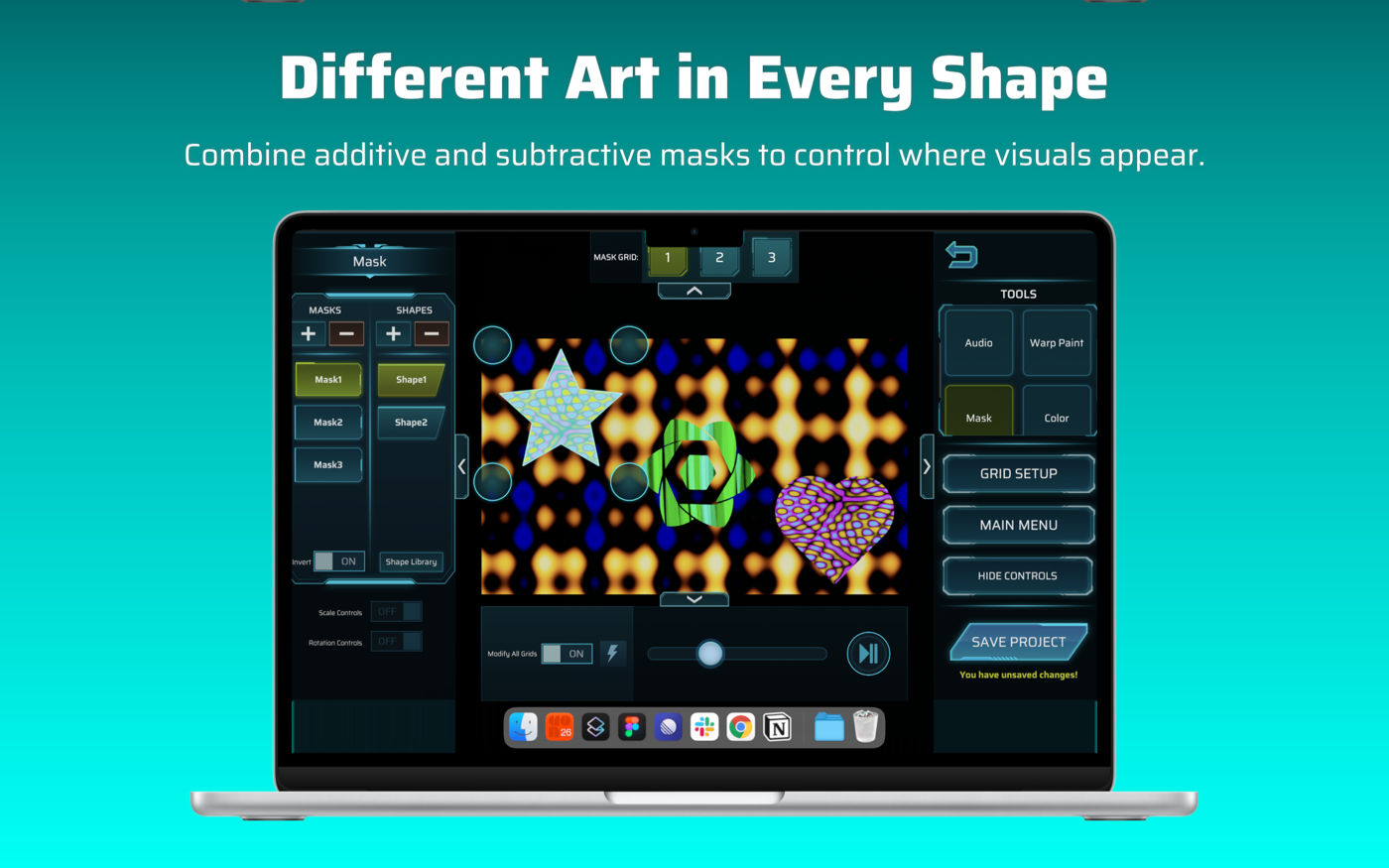
A mask is a group of shapes that decides which parts of the picture are visible. Different grids can use different masks, and one mask can be switched on for several grids.
Masks and shapes
Section titled “Masks and shapes”The left panel has two lists:
| MASKS | SHAPES | |
|---|---|---|
| + | Adds a mask (it starts on for every grid and with one shape) | Adds a shape to the selected mask |
| − | Removes the selected mask | Removes the selected shape. Removing a mask’s last shape removes the mask. |
Tap an item to select it. Selecting a shape highlights where it is on the picture.
Choosing which grids a mask affects
Section titled “Choosing which grids a mask affects”Along the top, MASK GRID: 1 2 3 … shows a button for each grid. These buttons set which grids the selected mask applies to. They don’t change the active grid. See How it fits together.
Invert
Section titled “Invert”The Invert switch flips the selected mask: the art shows where the mask was hiding it, and hides where it was showing it.
Moving and shaping a shape
Section titled “Moving and shaping a shape”With a shape selected you have several ways to adjust it. Only one can be used at a time.
- Corner pins: four pins appear at the shape’s corners. Drag them to stretch and skew the shape.
- Touch: drag the shape with one finger, pinch and twist with two.
- Scale Controls / Rotation Controls: switch these on (left panel) for width and height sliders and a rotation dial with arrows. These work with a mouse, so you don’t need pinch gestures on a Mac.
While you adjust, the panels step aside, and the mask is rebuilt when you let go.
Shape Library
Section titled “Shape Library”Tap Shape Library to change what the selected shape looks like. Two tabs:
- Shapes: the built-in shapes (square, circle, star, heart and more).
- My Library: shapes you’ve imported. Use Import Custom Shape to add an image as a shape.
Tap a thumbnail to use it, then Accept.
- Combine Invert with a few shapes to cut windows out of a picture.
- Use one mask per area of your scene, then switch it on only for the grids it belongs to.
- Mask shapes are saved with the project and travel with an exported project, including your own custom shapes.