
Align your grids
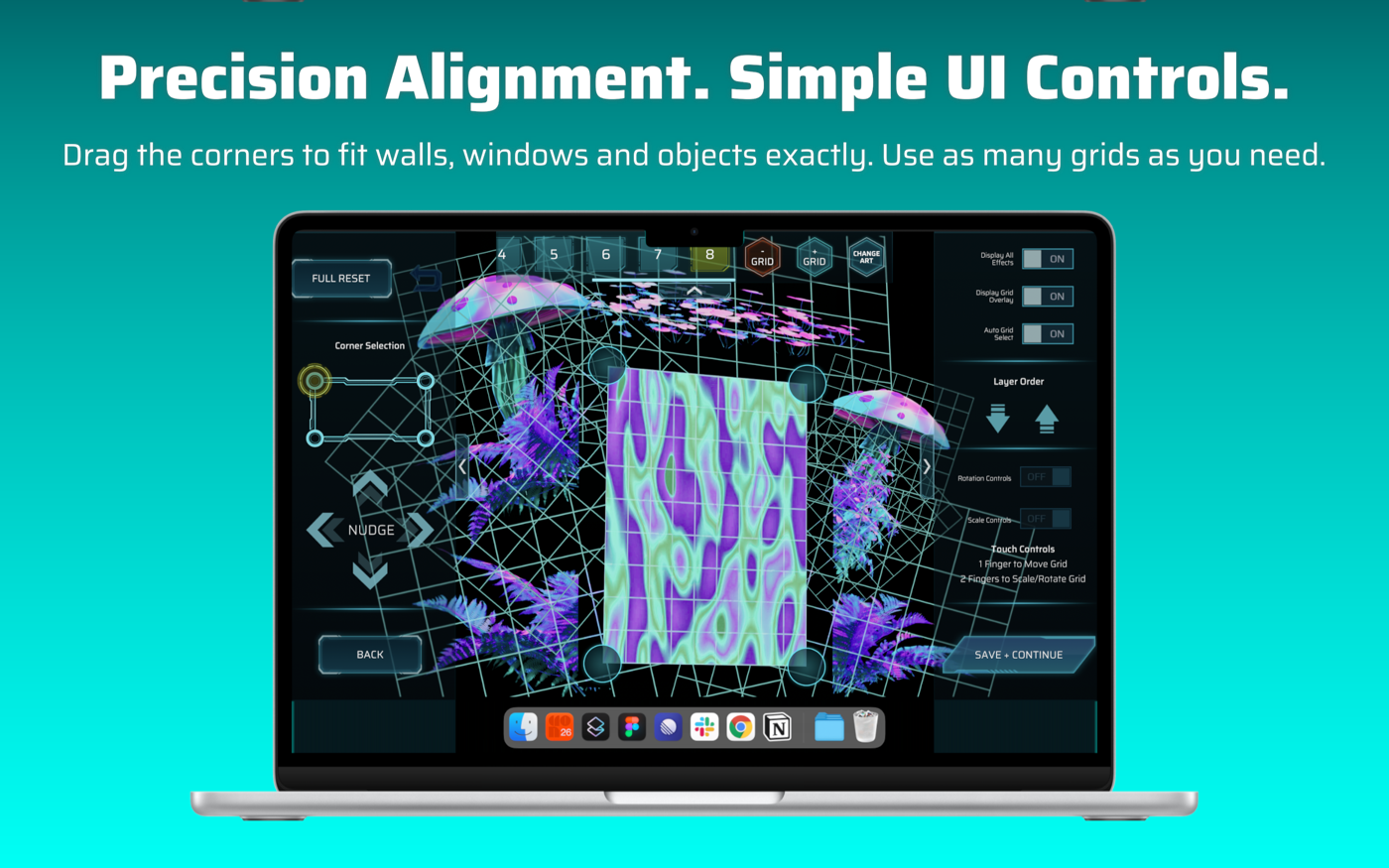
Step 1 has two parts: you choose your art, then line it up with the real surface here. You work on one grid at a time, and the grid you’re editing is the active grid.
Choosing the active grid
Section titled “Choosing the active grid”- Tap a numbered tile along the top.
- Or, with Auto Grid Select on, just touch the picture: the grid under your finger is selected (the top one, if grids overlap).
- To reach a grid that’s hidden behind others, turn Auto Grid Select off and use the numbered tiles.
The strip scrolls sideways if you have many grids. A press that turns into a scroll doesn’t select anything.
Add, remove, duplicate, change art
Section titled “Add, remove, duplicate, change art”| Control | What it does |
|---|---|
| + GRID | Adds a new grid on top. |
| − GRID | Removes the active grid. You can’t remove the last one. |
| CHANGE ART | Opens the artwork picker for the active grid. Its alignment, masks and colors are kept. |
| Press and hold a numbered tile (about ⅔ of a second) | Duplicates that grid. The copy sits on top and keeps the media, corners, size and rotation, color, key, speed, sound and mask membership. |
Moving the corners
Section titled “Moving the corners”Each grid has four corner pins. Drag a pin to the matching corner of your surface. The picture is warped to fit exactly between the four pins.
If a pin is hard to reach, or the grid is partly off-screen:
- Choose a corner in the Corner Selection box on the left.
- Tap the NUDGE arrows to move that corner. Hold an arrow to keep nudging.
Nudging has no limits, so a corner can move beyond the edge of the picture.
Moving, scaling and rotating the picture
Section titled “Moving, scaling and rotating the picture”- One finger (or the mouse): drag the grid to move it.
- Two fingers: pinch to scale and twist to rotate.
- No pinch available (Mac)? Switch on Scale Controls and/or Rotation Controls on the right. An on-screen overlay appears with a width slider, a height slider and a rotation dial, each with arrows for small steps. Hold a control for a moment and the surrounding panels and pins clear away so you can see what you’re doing.
The sliders cover a normal range, but the arrows and gestures can go past the ends.
Right-hand panel
Section titled “Right-hand panel”| Control | What it does |
|---|---|
| Display All Effects | Turns masks, warp paint, color and the rest on or off so you can see the raw art while aligning. |
| Display Grid Overlay | Draws a grid of lines over the picture so you can judge straightness. |
| Auto Grid Select | See above. Saved with the project. |
| Layer Order (up/down arrows) | Moves the active grid forward or backward in the stack. |
| Rotation Controls / Scale Controls | Show the transform overlay (above). |
Left-hand panel
Section titled “Left-hand panel”| Control | What it does |
|---|---|
| FULL RESET | Puts the active grid’s corners, position, size and rotation back to the starting state. You can undo it. |
| Undo arrow | Undoes the last change you made in Step 1. One step only, and it greys out once used. |
| Corner Selection / NUDGE | See above. |
| BACK | Leaves Step 1. In a new project it returns to the Main menu. When you came from a saved project it returns to the last saved version. |
| SAVE + CONTINUE | Saves and moves on to Step 2. |